3D Printing Guides: Beginners to Experts
Welcome to our comprehensive collection of 3D printing guides. Whether you're just starting out or looking to master advanced techniques, these resources cover everything you need to know about 3D printing - from choosing your first printer to troubleshooting complex prints.
Looking for a specific topic?
Use the table of contents below to jump to any section, or scroll through for a complete overview of 3D printing fundamentals and beyond.
1. Getting Started with 3D Printing
3D printing transforms digital designs into physical objects by building them layer by layer. It's revolutionized prototyping, manufacturing, and creativity - and it's more accessible than ever for hobbyists and professionals alike.
What is 3D Printing?
Also called additive manufacturing, 3D printing creates three-dimensional objects from digital files. Unlike traditional manufacturing that cuts away material (subtractive), 3D printing adds material layer by layer, allowing for complex geometries impossible with other methods.
Types of 3D Printing
- FDM (Fused Deposition Modeling) - The most common type. Melts plastic filament and deposits it layer by layer. Affordable, versatile, great for beginners.
- SLA (Stereolithography) - Uses UV light to cure liquid resin. Produces extremely detailed prints, ideal for miniatures and jewelry.
- SLS (Selective Laser Sintering) - Industrial process using lasers to fuse powder materials. Professional-grade strength and accuracy.
Related Guide:
How Long Does 3D Printing Take? Complete Time GuideWho Uses 3D Printing?
- Hobbyists & Makers - Custom parts, cosplay props, home repairs
- Engineers & Designers - Rapid prototyping and functional testing
- Small Businesses - Custom products, low-volume manufacturing
- Medical Field - Surgical models, prosthetics, dental aligners
- Education - Teaching STEM concepts hands-on
2. Choosing the Right 3D Printer
Selecting your first (or next) 3D printer depends on your goals, budget, and how much tinkering you're willing to do. Here's how to make the right choice.
Budget Categories
Entry Level ($150-$300)
Printers like the Creality Ender 3 V3 offer excellent value. Expect some assembly and calibration, but they're capable of quality prints. Great for learning the technology.
Mid-Range ($300-$800)
Options like Bambu Lab A1, Prusa MK4, or Creality K1 offer better reliability, easier setup, and features like auto bed leveling and enclosed chambers. Best value for serious hobbyists.
Prosumer ($800-$2000)
Printers like Bambu Lab X1 Carbon or Prusa XL offer multi-material printing, larger build volumes, and industrial-grade reliability. For professionals and demanding applications.
Related Guide:
Buy a 3D Printer or Use a Service? Cost Comparison GuideKey Features to Consider
- Build Volume - How large of objects can you print? Consider your typical projects.
- Auto Bed Leveling - Saves hours of frustration. Essential for beginners.
- Enclosure - Required for ABS/ASA, helpful for consistent temperatures.
- Direct Drive vs Bowden - Direct drive handles flexible filaments better.
- Community Support - Active communities mean better troubleshooting help.
FDM vs Resin: Which Should You Choose?
Choose FDM if: You want versatility, lower ongoing costs, safer materials, and larger print volumes. Best for functional parts, prototypes, and general-purpose printing.
Choose Resin if: You need extreme detail for miniatures, jewelry, or dental models. Be prepared for messier workflow, more post-processing, and safety considerations.
3. Materials & Filament Guide
Choosing the right material is crucial for successful prints. Each filament type has unique properties that make it suitable for different applications.
Common Filament Types
PLA (Polylactic Acid)
The most popular filament for beginners. Easy to print, biodegradable, minimal warping. Ideal for prototypes, decorative items, and learning. Not suitable for high-heat applications.
- Print temp: 190-220°C
- Bed temp: 50-60°C
- Cost: $20-30/kg (cheapest option)
PETG (Polyethylene Terephthalate Glycol)
Stronger and more flexible than PLA. Good chemical resistance and durability. The go-to choice for functional parts that don't need extreme heat resistance.
- Print temp: 220-250°C
- Bed temp: 70-80°C
- Cost: $25-35/kg
Material Comparison:
PLA vs PETG: Which 3D Printing Filament is Right for You?ABS (Acrylonitrile Butadiene Styrene)
Strong, heat-resistant, and impact-resistant. The same material as LEGO bricks. Requires an enclosure due to warping and fumes. Good for automotive and mechanical applications.
TPU (Thermoplastic Polyurethane)
Flexible, rubber-like material. Perfect for phone cases, gaskets, wheels, and anything needing impact absorption. Requires slower print speeds and direct drive extruder.
Nylon
Maximum strength and wear resistance. Ideal for gears, bearings, and high-stress parts. Very hygroscopic - must be kept dry. Requires enclosed printer and careful temperature control.
Complete Material Guide:
3D Printing Filament: The Ultimate Guide to Choosing MaterialsFilament Storage
Most filaments absorb moisture from the air, degrading print quality. Store filament in:
- Vacuum bags with desiccant packs
- Airtight containers with silica gel
- Dedicated dry boxes (especially for Nylon, PETG, TPU)
Sustainability:
Filament Recycler: Guide to Sustainable 3D Printing4. Software & Slicing
3D printing requires two types of software: design software to create models, and slicers to prepare them for printing.
Slicer Software
Slicers convert 3D models (STL/3MF files) into G-code instructions your printer understands. They control layer height, infill, supports, and dozens of other settings.
Popular Slicers
- Cura - Free, feature-rich, excellent community support. Works with almost any printer.
- PrusaSlicer - Free, clean interface, great defaults. Based on Slic3r.
- Bambu Studio - Optimized for Bambu printers but works with others. Modern UI.
- OrcaSlicer - Community fork with advanced features. Popular among enthusiasts.
3D Design Software
For Beginners
- TinkerCAD - Browser-based, extremely easy to learn. Great for simple designs.
- OnShape - Professional CAD in your browser. Free for hobbyists.
Intermediate
- Fusion 360 - Powerful parametric CAD. Free for personal use. Industry standard for makers.
- FreeCAD - Open-source parametric modeler. Steeper learning curve but fully capable.
For Artists
- Blender - Free, powerful 3D modeling for organic shapes and artistic designs.
- ZBrush - Digital sculpting tool. Excellent for miniatures and characters.
Complete Software Guide:
Best 3D Printing Software: Ultimate Guide for Beginners and ProsKey Slicer Settings
- Layer Height - 0.2mm standard, 0.1mm for detail, 0.3mm for speed
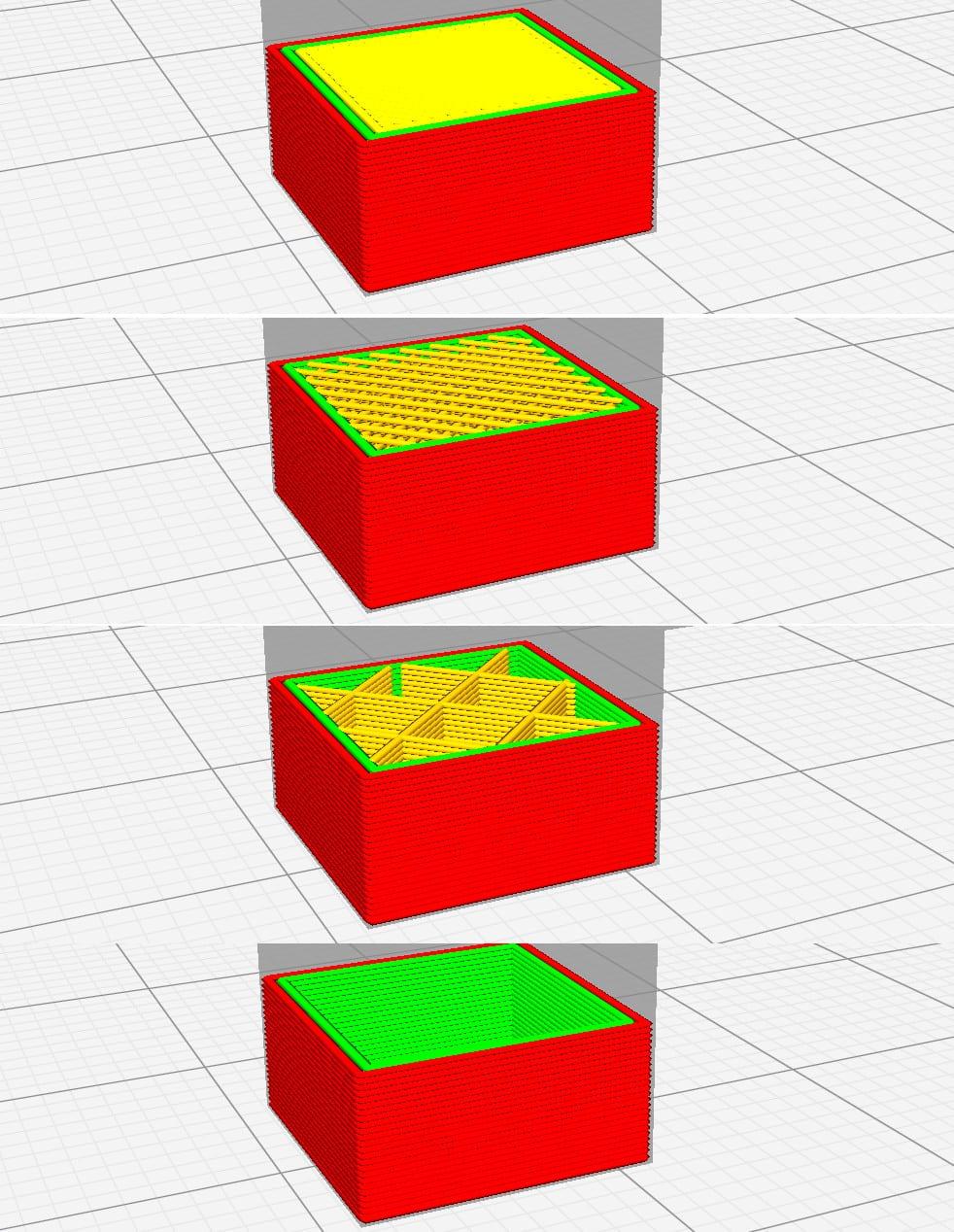
- Infill - 15-20% for decorative, 30-50% for functional, 100% for maximum strength
- Print Speed - 50-80mm/s typical, slower for quality, faster for drafts
- Supports - Enable for overhangs greater than 45°
- Brim/Raft - Improves bed adhesion for parts with small footprints
5. Your First Print
Ready to make your first print? Follow this step-by-step guide for the best chance of success.
Before You Print
- Level your bed - Most critical step. Paper should drag slightly under nozzle.
- Clean the build surface - Isopropyl alcohol removes oils and debris.
- Check filament - Ensure it's dry and properly loaded.
- Preheat - Let printer reach temperature before starting.
Choosing Your First Model
Start with something simple that tests basic functionality without being too challenging:
- Calibration cube (20mm) - Tests dimensional accuracy
- Benchy (tugboat) - The "Hello World" of 3D printing
- Simple phone stand - Actually useful!
- Cable clips or small organizers - Quick wins
First Print Settings
- Material: PLA (most forgiving)
- Layer height: 0.2mm (good balance)
- Infill: 20%
- Speed: 50mm/s (conservative)
- Supports: Only if needed
Model Preparation:
How to Prepare Your 3D Model for Printing: Complete ChecklistDuring the Print
- Watch the first layer carefully - it determines success
- Don't be afraid to cancel and restart if something looks wrong
- Avoid touching the printer or opening enclosures mid-print
- Note any issues for future troubleshooting
After the Print
- Let the bed cool before removing the print
- Use a scraper at a low angle if needed
- Remove supports carefully (needle-nose pliers help)
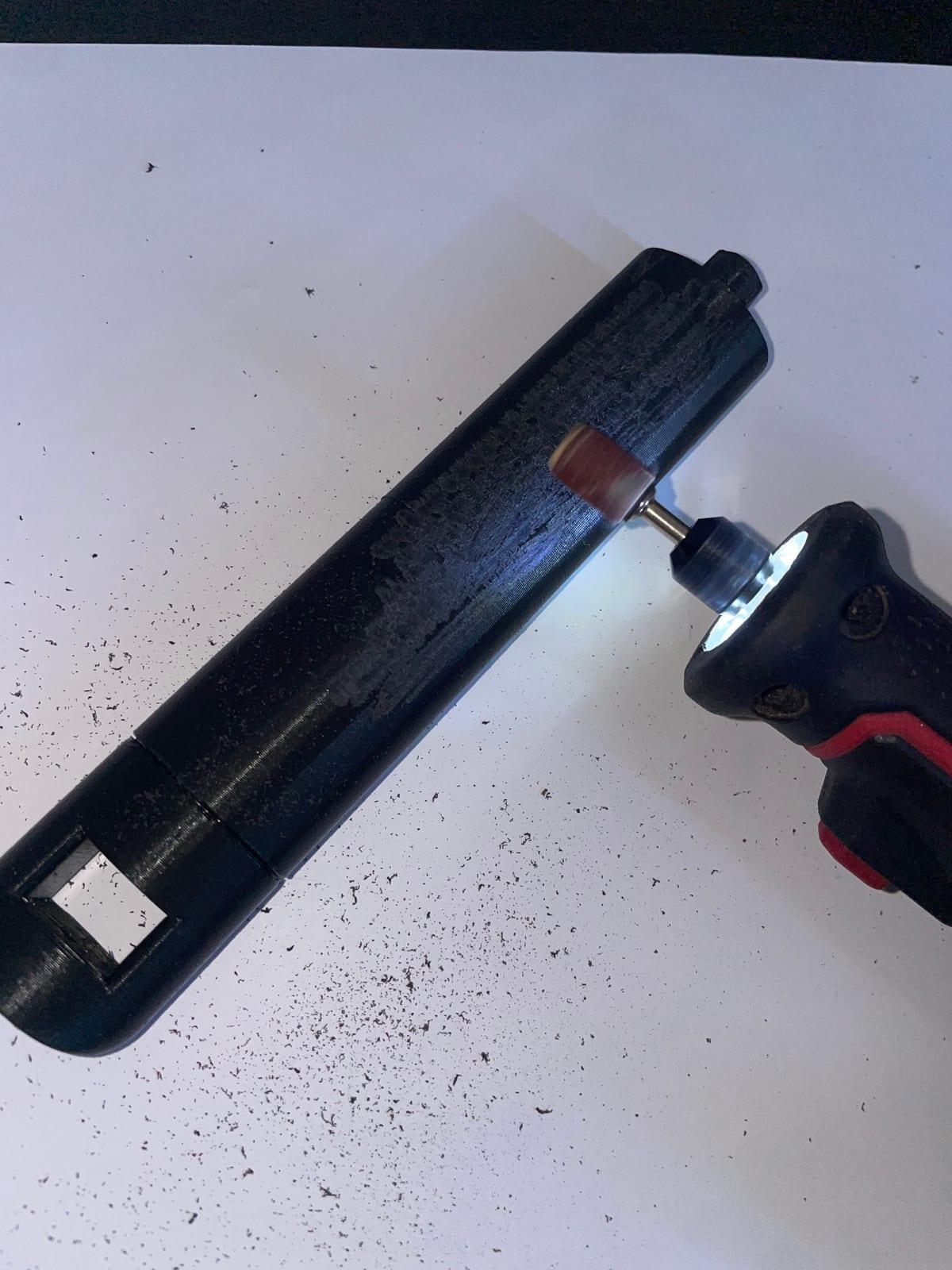
- Light sanding can improve surface finish
6. Troubleshooting Common Problems
Every 3D printer owner encounters issues. Here's how to diagnose and fix the most common problems.
First Layer Problems
Print Not Sticking to Bed
- Level the bed - nozzle too far from bed
- Clean build surface with isopropyl alcohol
- Increase bed temperature by 5-10°C
- Use glue stick or hairspray for better adhesion
- Slow down first layer speed (20-30mm/s)
First Layer Too Squished
- Nozzle is too close to bed
- Raise Z-offset slightly
- Re-level the bed
Print Quality Issues
Stringing (Hair-like wisps between parts)
- Enable retraction in slicer
- Increase retraction distance (4-6mm for Bowden, 1-2mm for direct drive)
- Lower print temperature by 5-10°C
- Dry your filament (moisture causes stringing)
Layer Lines/Poor Surface
- Reduce layer height for smoother finish
- Check for loose belts
- Ensure consistent temperatures (draft-free environment)
- Clean and lubricate linear rails/rods
Warping
- Increase bed temperature
- Use enclosure (essential for ABS)
- Add brim for better adhesion
- Ensure no drafts near printer
Mechanical Issues
Clogged Nozzle
- Perform cold pull (heat to 90°C, pull filament out)
- Use cleaning filament
- Replace nozzle (they're consumable)
- Check for heat creep (cooling fan issues)
Under-extrusion
- Check for partial clog
- Verify filament diameter in slicer
- Increase temperature slightly
- Check extruder gear tension
Pro Tip:
Keep a troubleshooting log. Note what you tried and what worked. Over time, you'll build intuition for diagnosing problems quickly.
7. Advanced Techniques
Once you've mastered the basics, these techniques can take your prints to the next level.
Multi-Color & Multi-Material Printing
Modern printers like Bambu Lab X1 with AMS or Prusa XL support automatic material changes. For single-extruder printers, you can:
- Use filament swap at specific layers
- Paint models after printing
- Design multi-part assemblies
Post-Processing Techniques
- Sanding - Progressive grits (200→400→800) for smooth finish
- Priming & Painting - Filler primer hides layer lines
- Acetone Vapor Smoothing - For ABS only, creates glossy finish
- Epoxy Coating - Adds strength and water resistance
Functional Printing Tips
- Orient parts for strength (layers perpendicular to stress)
- Use appropriate infill patterns (gyroid for strength, honeycomb for weight)
- Design for printing (minimize supports, consider overhangs)
- Add tolerances for moving parts (0.2-0.4mm gaps)
8. Business & Pricing
Thinking about selling prints or offering 3D printing services? Understanding costs and pricing is essential for sustainability.
Understanding Your Costs
Total print cost = Material + Machine Time + Labor + Overhead
- Material - Filament cost × weight (typically $0.02-0.05/gram)
- Machine time - Electricity + wear ($1-5/hour depending on printer)
- Labor - Setup, monitoring, post-processing time
- Overhead - Failed prints, maintenance, business costs
Pricing Strategies
- Cost-Plus - Calculate costs, add 30-50% margin
- Market Rate - Price based on what competitors charge
- Value-Based - Price based on value to customer
Getting Started with Print Services
Don't want to figure out pricing yourself? Platforms like 3D Print Bounty connect you with buyers looking for custom prints. You set your rates, accept projects that interest you, and build a reputation through reviews.
Free 3D Printing Calculators
Use our free tools to estimate costs before you print:
Additional Resources
Where to Find 3D Models
- Printables - Prusa's model repository, great quality
- Thingiverse - Largest collection of free models
- Thangs - Modern platform with great search
- Cults3D - Mix of free and premium designs
Stay Updated:
Best 3D Printing Blogs: Top Resources for MakersStart Your 3D Printing Journey
3D printing is an incredibly rewarding skill that combines creativity, engineering, and problem-solving. Whether you're creating custom parts, artistic projects, or starting a business, the fundamentals covered in this guide will serve you well.
Remember: every expert was once a beginner. Your first prints won't be perfect, and that's okay. Each failed print is a learning opportunity. Join communities, ask questions, and keep experimenting.
Need something printed but don't have a printer yet? Post your project on 3D Print Bounty and connect with experienced makers who can bring your ideas to life.
Ready to Get Something Printed?
Post your project and receive quotes from verified 3D printing makers in your area.